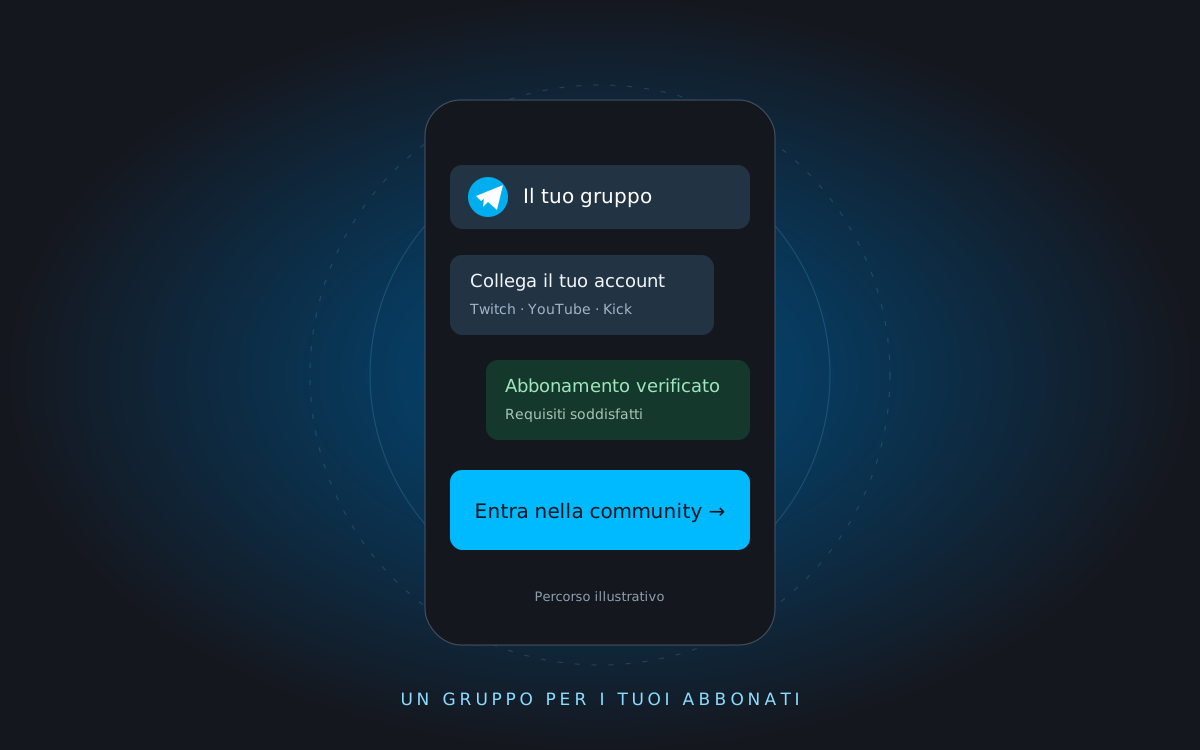
Would you like to give subscribers a Telegram space to continue conversations after streams or discuss your projects? With CrewMaster, you can link the group to Twitch, YouTube and Kick subscriptions and verify access through the bot. The key is linking each member’s Telegram identity to the account they use to support the creator.
This guide follows CrewMaster’s setup process. Available steps and options may depend on your plan, connected integrations and whether you use a custom bot.
1Before you start: what the creator needs
- A CrewMaster creator account and a plan that includes Telegram, with limits suited to your number of groups and subscribers.
- The creator accounts on the platforms whose subscriptions you want to recognize.
- A Telegram group where you can manage bots and permissions.
- Clear rules: who can join, which requirements they must meet and which collaborators may be granted exceptions.
See the plan comparison before inviting your audience. For a subscribers-only group, it makes sense to start with a private group and share the access journey through the bot.
21. Connect creator accounts to CrewMaster
Sign in to CrewMaster and follow the creator profile setup. Connect the Twitch, YouTube or Kick accounts you want to use for community services, authorizing the connection through each platform’s own flow.
Keep the two roles distinct: the creator connects the channel whose subscribers they manage; members later connect their personal accounts to show that they meet the requirements.
32. Create a group or connect an existing one
Setup supports both a new group and migration of an existing one. For a new group, create it in Telegram; for an existing group, follow the migration process, especially if it already has members.
Start the CrewMaster bot on Telegram and add it to the group as instructed. If you configured a custom bot, setup will ask you to add it too: CrewMaster is still required for configuration and, where applicable, migration.
43. Complete setup and check requirements
In the group, run the command /setup as instructed by the setup wizard. Check that the bot has the permissions needed to manage access and configure the group’s requirements in the available sections. The bot appearing in the member list does not mean setup is complete.
Wait for the initial subscription sync and check that the correct creator accounts are connected. Timing can vary: do not promise members instant verification in every situation.
If you are migrating a populated group, first prepare a message explaining why members must connect their accounts and how to complete verification. Carefully check exceptions and settings before rolling the process out to everyone.
54. Share the access journey, not just an invite
Once setup is complete, share the link to your community’s bot with subscribers, available in the creator’s access journey. The Telegram block in CreatorHub can also guide users to the bot.
A group invite alone does not explain subscription verification. Add a few instructions to the link: start the bot, connect the correct account and follow verification. If you use a custom bot, share the journey specified by your configuration.
65. What subscribers must do to join
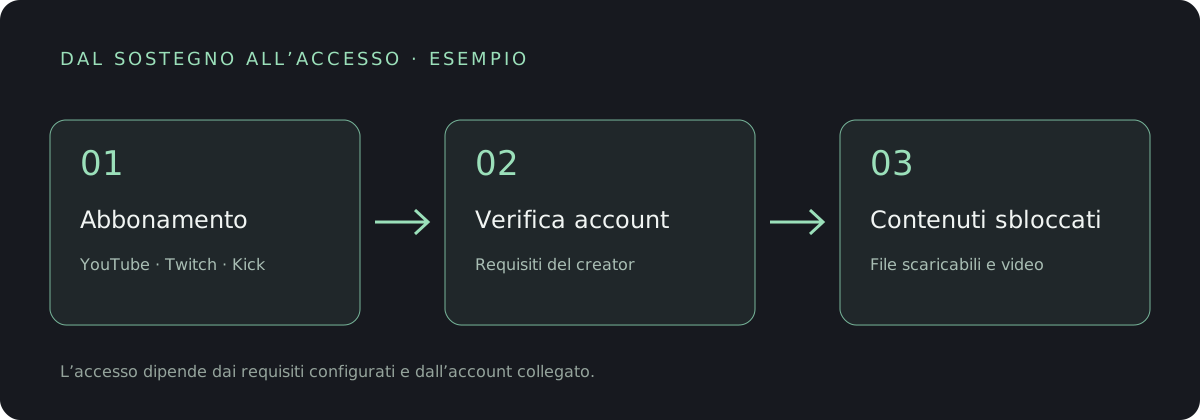
- Open the creator’s link. The member starts a private conversation with the bot and follows its instructions.
- Connect the correct social account. They must use the account subscribed to the creator’s channel, through the platform’s authorization flow.
- Wait for verification. CrewMaster checks whether the recognized account meets the group’s configured requirements.
- Follow the joining instructions. If verification succeeds, the bot guides them into the private community.
Members must not send their passwords to the creator or moderators. A Telegram display name alone does not prove a subscription: the account must be connected.
76. Manage renewals, whitelist and moderation
When subscription status changes, access management follows the group’s settings and the data synced with the platform. Check expected timings, available reminders and removal rules: a renewal may require a data update before it is recognized.
Use the whitelist for collaborators or other users you want to authorize without a subscription. Exceptions should be deliberate and kept up to date. Through the bot or Studio, creators and staff can manage the moderation features they are authorized to use.
Access control does not replace community rules. Pin a message explaining permitted topics, how to report problems and how to get support.
8If a subscriber cannot join
- Check the account. Did the user connect the account that actually holds the subscription? Is the subscription for the correct channel?
- Check the requirements. Does the subscription meet the conditions set for that group?
- Check the status. A recent payment or renewal may not have synced yet.
- Check the setup. Is the group connected correctly, and does the bot have the required permissions?
If the problem persists, gather relevant information without asking for passwords or login codes and contact CrewMaster support. Before opening the group to your entire community, test the whole journey with a subscriber and an authorized collaborator.